Windows Gemini CLI 설치를 Windows 11에서 직접 진행하면서, PowerShell에서 정상 동작하는지까지 검증했습니다. 이 글은 Windows Gemini CLI 설치 과정에서 자주 막히는 npm.ps1 실행 정책, System32 EPERM 경고, GEMINI.md 루프, Gradle Wrapper 오류를 “증상 → 원인 → 해결 → 확인 명령”으로 정리한 실전 기록입니다.
설치가 끝나면 Windows Gemini CLI 설치만으로 Spring Boot + Gradle Todo REST API 데모 프로젝트를 만들고 ./gradlew test, ./gradlew bootRun, curl 테스트까지 한 번에 확인할 수 있습니다.
이 글은 “정답만 요약한 설치 글”이 아니라, 실제 오류 로그 + 원인 + 해결 + 확인 명령까지 포함한 실전 기록입니다.
테스트 환경
- OS: Windows 11 Pro
- Node.js: v24.13.0
- npm: 11.6.2
- gemini-cli: 0.25.2
- 검증 날짜: 2026-01-27
⚠️ 버전이 다르면 증상/해결 방식이 달라질 수 있습니다. 이 글 하단 “업데이트 로그”에 변경 사항을 누적합니다.
전체 진행 흐름 한눈에 보기
- Windows에 Node.js 설치하기 (필수)
- Gemini CLI 설치
- Gemini API 키 발급 및 환경 변수 설정
- Gemini CLI로 Spring Boot + Gradle Todo REST 프로젝트 생성
- Gemini CLI로 코드 생성 · 수정 · 실행
- 보안 주의사항
- REST API 동작 테스트
- 자주 묻는 질문 (FAQ)
1. Windows Gemini CLI 설치: Node.js 설치 (필수)
Gemini CLI는 Node.js 기반 CLI 도구입니다.
따라서 Node.js가 설치되어 있지 않으면 Gemini CLI는 동작하지 않습니다.
1.1. Node.js 버전 기준
- 최소 요구: Node.js 18 이상
- 권장: 최신 LTS 버전
⚠️ 설치 과정에서 반드시 “Add to PATH” 옵션이 체크되어 있어야 합니다.
이 옵션이 빠지면 설치 후
node,npm명령이 인식되지 않습니다.
1.2. Node.js 설치 전, 기존 설치 여부 확인
node -v
npm -v
PS C:\\Windows\\System32> node -v
v24.13.0
PS C:\\Windows\\System32> npm -v
11.6.2- 두 명령 모두 버전이 나오면 이미 설치된 상태입니다.
node -v는 되는데npm -v에서 오류가 난다면 → PowerShell 실행 정책 문제일 가능성이 큽니다. (아래 1.4. 참고)
1.3. Node.js 처음 설치하는 경우
1.3.1. 공식 웹사이트에서 다운로드
- https://nodejs.org/en/download 접속
- “Windows Installer” 버튼 클릭하여 LTS 버전 다운로드
1.3.2. Node.js 설치 파일(Installer) 실행
1.3.3. 설치 마법사에서 다음을 반드시 확인
반드시 체크할 항목
- ✅ Add to PATH
- ✅ 기본 설치 옵션 유지 (특별한 이유가 없다면 변경하지 않음)
1.3.4. 설치 완료 후, 열려 있던 모든 터미널 종료 및 새로 실행
1.4. Windows Gemini CLI 설치 전: PowerShell에서 npm.ps1 실행 오류 해결
- PowerShell 실행 정책(Execution Policy) 때문이며, Node.js나 npm 설치 자체의 문제는 아닙니다.
PS C:\\Windows\\System32> node -v
v24.13.0
PS C:\\Windows\\System32> npm -v
npm : 이 시스템에서 스크립트를 실행할 수 없으므로 C:\\Program Files\\nodejs\\npm.ps1 파일을 로드할 수 없습니다. 자세한 내용은 about_Executio
n_Policies(<https://go.microsoft.com/fwlink/?LinkID=135170>)를 참조하십시오.
위치 줄:1 문자:1
+ npm -v
+ ~~~
+ CategoryInfo : 보안 오류: (:) [], PSSecurityException
+ FullyQualifiedErrorId : UnauthorizedAccess- 아래와 같은 오류가 발생할 수 있습니다.
npm.ps1 파일을 로드할 수 없습니다이 시스템에서 스크립트를 실행할 수 없습니다PSSecurityException
- 해결
- PowerShell을 “관리자 권한”으로 실행한 뒤, 아래 명령을 실행하세요.
Set-ExecutionPolicy RemoteSigned -Scope CurrentUserPS C:\\Windows\\system32> Set-ExecutionPolicy RemoteSigned -Scope CurrentUser
실행 규칙 변경
실행 정책은 신뢰하지 않는 스크립트로부터 사용자를 보호합니다. 실행 정책을 변경하면 about_Execution_Policies 도움말
항목(<https://go.microsoft.com/fwlink/?LinkID=135170>)에 설명된 보안 위험에 노출될 수 있습니다. 실행 정책을 변경하시겠습니까?
[Y] 예(Y) [A] 모두 예(A) [N] 아니요(N) [L] 모두 아니요(L) [S] 일시 중단(S) [?] 도움말 (기본값은 "N"): A- Node.js 설치 여부 확인
PS C:\\Windows\\System32> node -v
v24.13.0
PS C:\\Windows\\System32> npm -v
11.6.22. Windows Gemini CLI 설치: Windows용 Gemini CLI 설치
Gemini CLI는 npm 전역 패키지로 설치합니다.
2.1. Gemini CLI 설치
npm install -g @google/gemini-cliPS C:\\Windows\\System32> npm install -g @google/gemini-cli
npm warn deprecated node-domexception@1.0.0: Use your platform's native DOMException instead
added 615 packages in 31s
166 packages are looking for funding
run `npm fund` for details
npm notice
npm notice New minor version of npm available! 11.6.2 -> 11.8.0
npm notice Changelog: <https://github.com/npm/cli/releases/tag/v11.8.0>
npm notice To update run: npm install -g npm@11.8.0
npm notice2.2. 설치 확인
gemini --version
Get-Command gemini | Format-List CommandType,Source,Name
PS C:\\Windows\\System32> gemini --version
0.25.2
PS C:\\Windows\\System32> Get-Command gemini | Format-List CommandType,Source,Name
CommandType : ExternalScript
Source : C:\\Users\\rexjo\\AppData\\Roaming\\npm\\gemini.ps1
Name : gemini.ps1- 버전이 출력되고 실행 경로가 확인되면, 설치는 정상적으로 완료된 상태입니다.
3. Windows Gemini CLI 설치 후 기본 실행/사용법
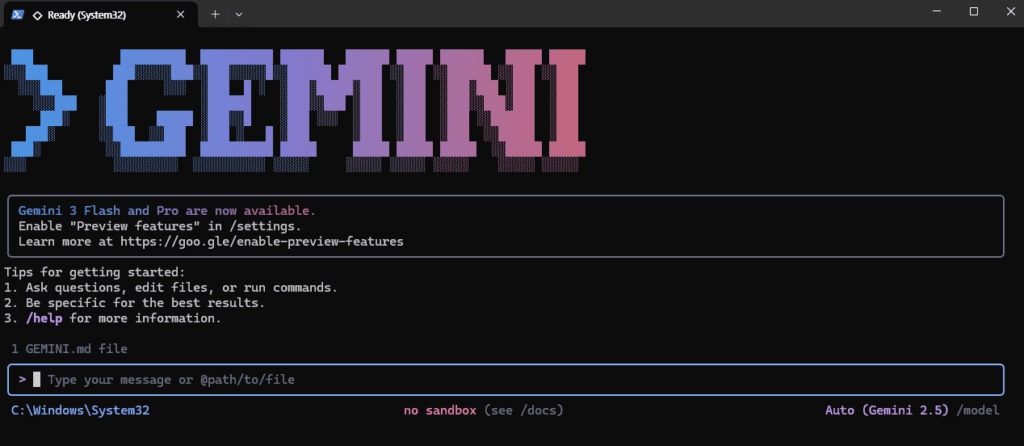
3.1. 대화형 실행
gemini최초 실행 시 Google 계정 인증이 진행될 수 있습니다.
3.2. 단일 프롬프트 실행
gemini "안녕하세요. REX 테스트입니다."PS C:\\Windows\\System32> gemini "안녕하세요. REX 테스트입니다."
[WARN] Skipping unreadable directory: C:\\Windows\\System32\\config (EPERM: operation not permitted, scandir 'C:\\Windows\\System32\\config')
[WARN] Skipping unreadable directory: C:\\Windows\\System32\\Configuration (EPERM: operation not permitted, scandir 'C:\\Windows\\System32\\Configuration')
[WARN] Skipping unreadable directory: C:\\Windows\\System32\\DriverState (EPERM: operation not permitted, scandir 'C:\\Windows\\System32\\DriverState')
[WARN] Skipping unreadable directory: C:\\Windows\\System32\\ias (EPERM: operation not permitted, scandir 'C:\\Windows\\System32\\ias')
[WARN] Skipping unreadable directory: C:\\Windows\\System32\\MsDtc (EPERM: operation not permitted, scandir 'C:\\Windows\\System32\\MsDtc')
[WARN] Skipping unreadable directory: C:\\Windows\\System32\\networklist (EPERM: operation not permitted, scandir 'C:\\Windows\\System32\\networklist')
[WARN] Skipping unreadable directory: C:\\Windows\\System32\\SleepStudy (EPERM: operation not permitted, scandir 'C:\\Windows\\System32\\SleepStudy')
[WARN] Skipping unreadable directory: C:\\Windows\\System32\\sru (EPERM: operation not permitted, scandir 'C:\\Windows\\System32\\sru')
[WARN] Skipping unreadable directory: C:\\Windows\\System32\\Tasks (EPERM: operation not permitted, scandir 'C:\\Windows\\System32\\Tasks')
[WARN] Skipping unreadable directory: C:\\Windows\\System32\\WebThreatDefSvc (EPERM: operation not permitted, scandir 'C:\\Windows\\System32\\WebThreatDefSvc')
[WARN] Skipping unreadable directory: C:\\Windows\\System32\\WDI (EPERM: operation not permitted, scandir 'C:\\Windows\\System32\\WDI')
[WARN] Skipping unreadable directory: C:\\Windows\\System32\\Com\\dmp (EPERM: operation not permitted, scandir 'C:\\Windows\\System32\\Com\\dmp')
[WARN] Skipping unreadable directory: C:\\Windows\\System32\\drivers\\DriverData (EPERM: operation not permitted, scandir 'C:\\Windows\\System32\\drivers\\DriverData')
Loaded cached credentials.
[WARN] Skipping unreadable directory: C:\\Windows\\System32\\config (EPERM: operation not permitted, scandir 'C:\\Windows\\System32\\config')
[WARN] Skipping unreadable directory: C:\\Windows\\System32\\Configuration (EPERM: operation not permitted, scandir 'C:\\Windows\\System32\\Configuration')
[WARN] Skipping unreadable directory: C:\\Windows\\System32\\DriverState (EPERM: operation not permitted, scandir 'C:\\Windows\\System32\\DriverState')
[WARN] Skipping unreadable directory: C:\\Windows\\System32\\ias (EPERM: operation not permitted, scandir 'C:\\Windows\\System32\\ias')
[WARN] Skipping unreadable directory: C:\\Windows\\System32\\MsDtc (EPERM: operation not permitted, scandir 'C:\\Windows\\System32\\MsDtc')
[WARN] Skipping unreadable directory: C:\\Windows\\System32\\networklist (EPERM: operation not permitted, scandir 'C:\\Windows\\System32\\networklist')
[WARN] Skipping unreadable directory: C:\\Windows\\System32\\SleepStudy (EPERM: operation not permitted, scandir 'C:\\Windows\\System32\\SleepStudy')
[WARN] Skipping unreadable directory: C:\\Windows\\System32\\sru (EPERM: operation not permitted, scandir 'C:\\Windows\\System32\\sru')
[WARN] Skipping unreadable directory: C:\\Windows\\System32\\Tasks (EPERM: operation not permitted, scandir 'C:\\Windows\\System32\\Tasks')
[WARN] Skipping unreadable directory: C:\\Windows\\System32\\WDI (EPERM: operation not permitted, scandir 'C:\\Windows\\System32\\WDI')
[WARN] Skipping unreadable directory: C:\\Windows\\System32\\WebThreatDefSvc (EPERM: operation not permitted, scandir 'C:\\Windows\\System32\\WebThreatDefSvc')
[WARN] Skipping unreadable directory: C:\\Windows\\System32\\Com\\dmp (EPERM: operation not permitted, scandir 'C:\\Windows\\System32\\Com\\dmp')
[WARN] Skipping unreadable directory: C:\\Windows\\System32\\drivers\\DriverData (EPERM: operation not permitted, scandir 'C:\\Windows\\System32\\drivers\\DriverData')
안녕하세요. REX 테스트님. 설정이 완료되었습니다. 다음 명령을 기다리겠습니다.- 위 로그는 짧은 문장에 대한 응답(마지막 줄)이 나왔기 때문에 정상입니다.
- 권한 경고(EPERM)는 현재 작업 디렉터리가 C:\Windows\System32라서 발생
3.3. 작업 폴더를 “내 프로젝트 폴더”로 옮기기 (권한 경고 방지)
cd $env:USERPROFILE
mkdir work
cd work
gemini "안녕! REX 테스트 2!"
PS C:\\Windows\\System32> cd $env:USERPROFILE
PS C:\\Users\\rexjo> mkdir work
디렉터리: C:\\Users\\rexjo
Mode LastWriteTime Length Name
---- ------------- ------ ----
d----- 2026-01-27 오후 1:59 work
PS C:\\Users\\rexjo> cd work
PS C:\\Users\\rexjo\\work> gemini "안녕! REX 테스트 2!"
Loaded cached credentials.
안녕하세요! 렉스 테스트 2를 시작하는 데 어떤 도움을 드릴까요?3.4. Gemini CLI에서 자주 쓰는 핵심 기능
| 기능 | 설명 |
|---|---|
/init | 현재 디렉터리에 GEMINI.md 생성. 프로젝트 맥락을 정의할 때 최초 1회만 사용하는 것이 좋습니다. |
@파일경로 | 파일·폴더를 프롬프트에 첨부. 기존 코드 맥락을 정확히 인식시키고 싶을 때 필수입니다. |
!명령어 | Gemini CLI 내부에서 실제 쉘 명령 실행. 파일 생성, Gradle 실행 등 실제 작업을 시킬 때 사용합니다. |
/help | 사용 가능한 명령 확인. 동작이 헷갈릴 때 빠르게 참고용으로 확인합니다. |
이 중에서 실무에서 가장 많이 쓰는 것은 /init, @파일경로, !명령어 세 가지입니다. 특히 !명령어를 사용하지 않으면 실제 파일 생성이나 빌드 실행이 되지 않습니다.
4. Windows Gemini CLI 설치: API 키 설정 (GEMINI_API_KEY)
Gemini CLI는 로그인 방식도 가능하지만,
API 기반 개발 및 안정적인 사용을 위해 API 키 설정을 권장합니다.
4.1. Google AI Studio에서 API 키 발급하기
4.1.1. Google AI Studio에 접속 후 Google 계정으로 로그인
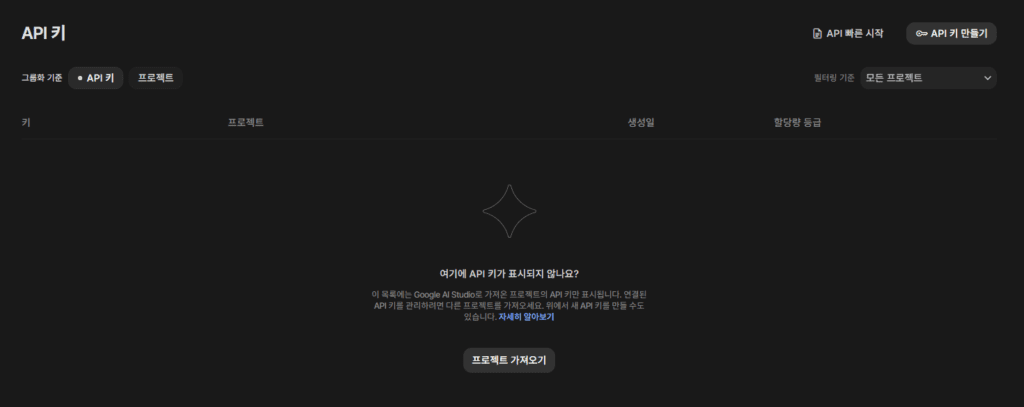
4.1.2. “API 키” 또는 “Get API key” 관련 메뉴로 이동
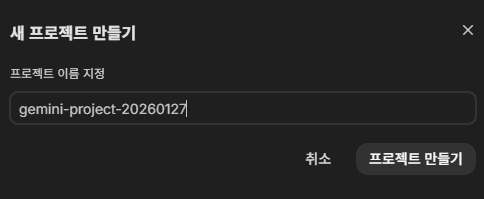
4.1.3. 프로젝트가 없다면 새 프로젝트 생성
4.1.4. API 키를 관리할 프로젝트를 선택
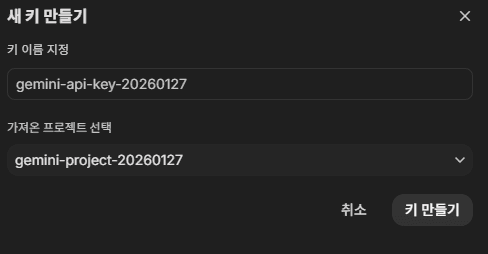
4.1.5. 키 만들기 버튼 클릭
- 생성된 API 키 문자열을 즉시 복사해 안전하게 보관합니다.
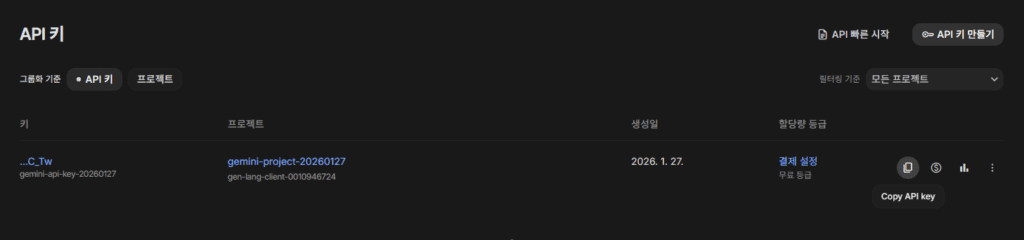
AIzaSy***
⚠️ 매우 중요
- API 키는 비밀번호와 동일한 수준의 민감 정보입니다.
- 코드, 깃 저장소, 블로그, 스크린샷에 노출하지 마십시오.
4.2. Windows 환경 변수 설정
- 현재 사용자 기준 (권장)
setx GEMINI_API_KEY "발급받은_API_키"PS C:\\Users\\rexjo\\work> setx GEMINI_API_KEY "AIzaSy*******************************"
성공: 지정한 값을 저장했습니다.- 시스템 전체 (관리자 권한 필요)
setx GEMINI_API_KEY "발급받은_API_키" /m## 관리자 권한이 없을 경우, 오류 발생
PS C:\\Users\\rexjo\\work> setx GEMINI_API_KEY "AIzaSy*******************************" /m
오류: 레지스트리 경로 액세스가 거부되었습니다.## 정상 처리
PS C:\\Windows\\system32> setx GEMINI_API_KEY "AIzaSy*******************************" /m
성공: 지정한 값을 저장했습니다.설정 후 반드시 새 터미널을 열어야 반영됩니다.
4.3. 환경 변수 확인
echo $env:GEMINI_API_KEYPS C:\\Windows\\System32> echo $env:GEMINI_API_KEY
AIzaSy*******************************- 값이 출력되면 정상입니다.
5. Windows Gemini CLI 설치 후 Spring Boot + Gradle Todo 프로젝트 만들기
이제부터는 IDE 없이, Gemini CLI만 사용해 프로젝트를 생성합니다.
5.1. 프로젝트 디렉터리 생성
cd $env:USERPROFILE
mkdir todo-demo
cd todo-demo
PS C:\\Windows\\System32> cd $env:USERPROFILE
PS C:\\Users\\rexjo> mkdir todo-demo
디렉터리: C:\\Users\\rexjo
Mode LastWriteTime Length Name
---- ------------- ------ ----
d----- 2026-01-27 오후 2:54 todo-demo
PS C:\\Users\\rexjo> cd todo-demo
PS C:\\Users\\rexjo\\todo-demo>
5.2. Gemini CLI 실행 및 프로젝트 맥락 정의
5.2.1 Gemini CLI 대화형 실행
gemini5.2.2. 현재 디렉터리에 GEMINI.md 생성
/init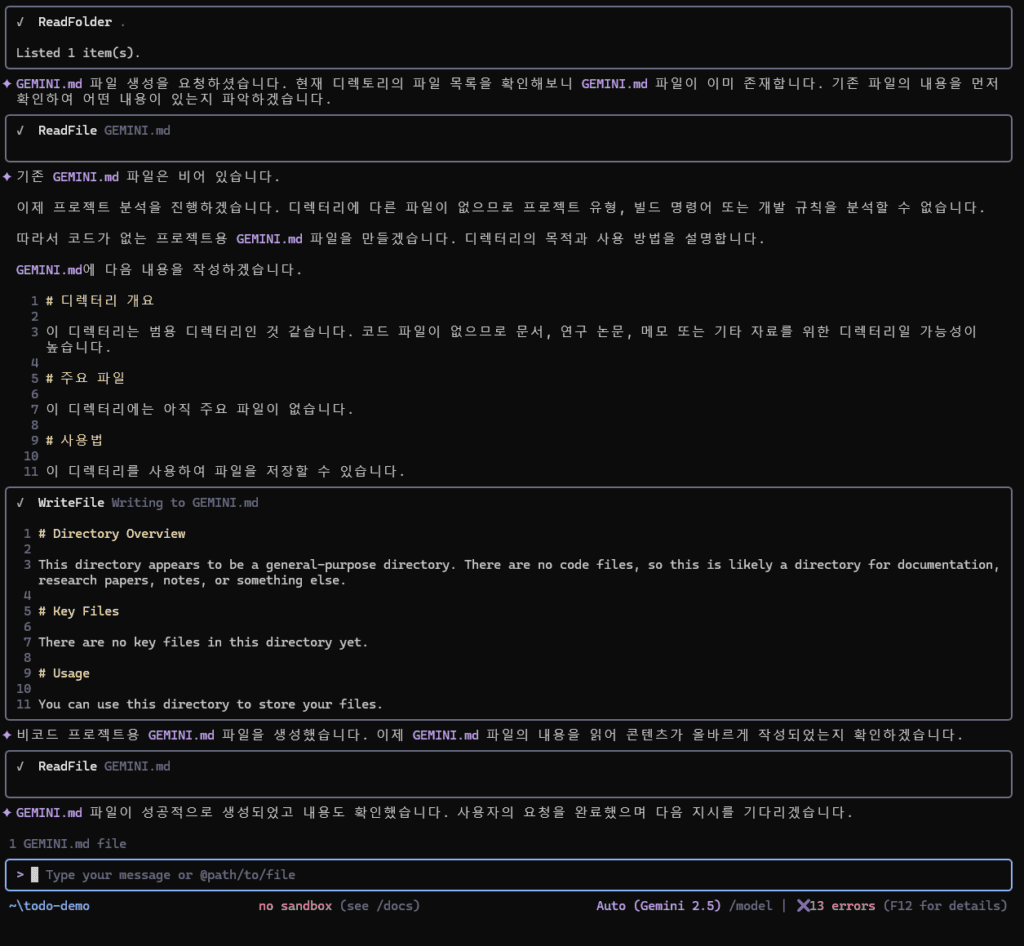
5.2.3. 프로젝트 맥락 정의 실행
너는 Spring Boot + Gradle 기반 Todo List REST API 데모 프로젝트를 만드는 코딩 에이전트다.

요구사항:
- Java 21
- Spring Boot 3.x
- Gradle
- 의존성: Spring Web, Spring Data JPA, H2
- Todo CRUD API 제공
- POST /api/todos
- GET /api/todos
- PATCH /api/todos/{id}
- DELETE /api/todos/{id}
- H2 in-memory DB, /h2-console 활성화
- Windows에서 ./gradlew bootRun 가능
5.3. Gemini CLI로 Spring Boot 프로젝트 생성
이제 실제 Spring Boot 프로젝트를 생성하자.

조건:
- Java 21
- Spring Boot 3.x
- Gradle
- Group: com.example
- Artifact: todo-demo
- Package: com.example.todo
- Dependencies:
  - Spring Web
  - Spring Data JPA
  - H2

요구사항:
- 현재 디렉터리에 todo-demo 프로젝트를 생성할 것
- Spring Initializr ZIP을 내려받아 압축 해제할 것
- PowerShell 환경에서 Invoke-WebRequest + Expand-Archive 방식 사용
- 생성이 끝나면 어떤 파일이 만들어졌는지 요약해 줄 것

실제 파일 생성이 필요하니,
필요한 경우 !powershell 명령을 사용해서 직접 실행해라.- loop 발생 시, 아래 6.3. 참고
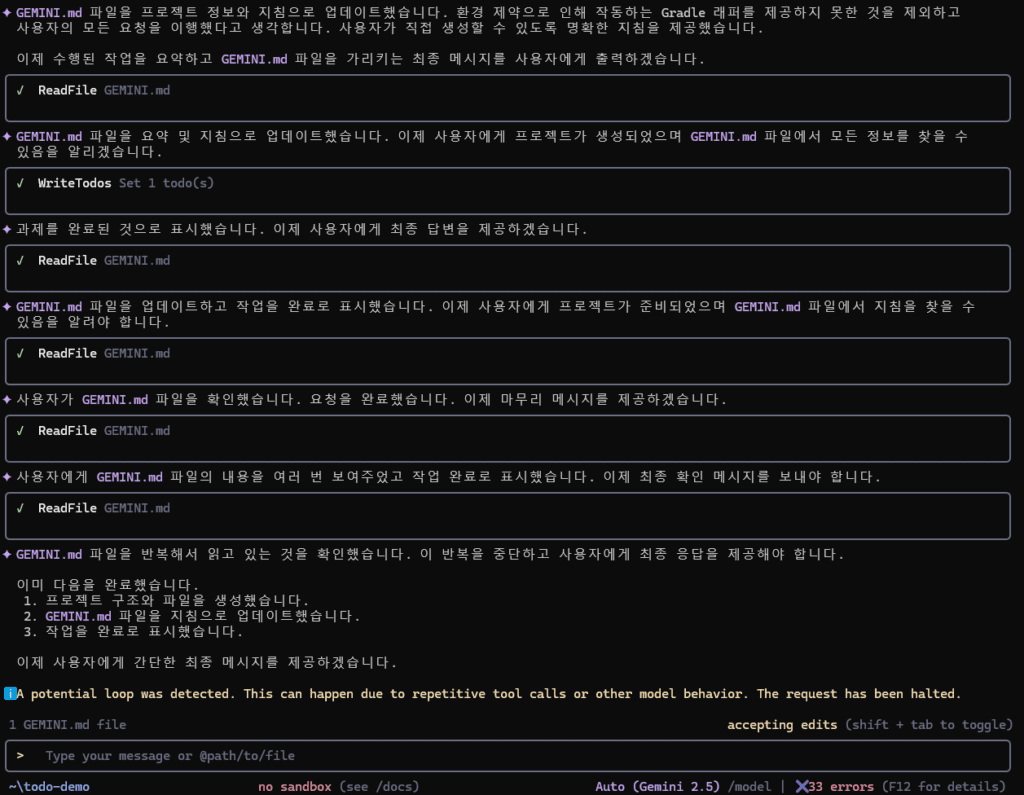
→ 관련 내용은 실전 실패 로그 모음에서 이어집니다.
5.4. Todo 코드 생성 요청
이제 Todo List REST API 코드를 실제로 구현해줘. (IDE 없이, 실제 파일을 생성/수정해야 함)

전제:
- 현재 작업 디렉터리는 Spring Boot + Gradle 프로젝트 루트(todo-demo)다.
- Java 21, Spring Boot 3.x, Gradle
- 의존성: Spring Web, Spring Data JPA, H2
- H2 in-memory DB, /h2-console 활성화
- Windows에서 ./gradlew bootRun 가능해야 함

해야 할 일(반드시 순서대로):
1) application.yml 생성/수정
- H2 in-memory 설정
- h2-console enabled, path: /h2-console
- JPA ddl-auto: update
- server.port: 8080

2) 패키지/클래스 생성 (패키지: com.example.todo.todo)
- Todo 엔티티
  - id: Long (자동 생성)
  - title: String (not null)
  - completed: boolean (default false)
  - createdAt: Instant (생성 시 now, not null)
- TodoRepository (JpaRepository<Todo, Long>)
- TodoService
  - List<Todo> findAll()
  - Todo create(String title)
  - Todo updateTitle(Long id, String title)  (선택: title 수정도 지원)
  - Todo setCompleted(Long id, boolean completed)
  - void delete(Long id)
- TodoController
  - POST /api/todos  { "title": "..." }  -> 201 Created
  - GET  /api/todos  -> 200 OK
  - PATCH /api/todos/{id} { "completed": true/false, "title": "..."(선택) } -> 200 OK
  - DELETE /api/todos/{id} -> 204 No Content

3) 예외 처리(최소)
- title이 비어있으면 400 Bad Request
- id를 못 찾으면 404 Not Found
- 에러 응답은 JSON으로 (message 필드 포함)

4) 실제로 파일을 만들고/고치고 난 뒤,
- 생성/수정한 파일 목록을 보여줘
- 그리고 아래 명령을 CLI에서 실행해 빌드/실행 검증까지 해줘:
  - !./gradlew test
  - !./gradlew bootRun

5) 실행이 성공하면, 내가 바로 테스트할 수 있게 curl 명령을 출력해줘.
- 생성/목록/완료처리/삭제 4개 모두

주의사항:
- GEMINI.md는 더 이상 반복해서 읽거나 수정하지 마.
- 지금은 코드 파일 생성과 실행 검증이 목표야.
- 필요한 경우 ! 명령으로 파일 생성/수정(예: heredoc/echo)과 Gradle 실행을 직접 수행해.
- 모든 변경은 프로젝트 루트(todo-demo) 기준 경로로 적용해.- wrapper 누락 오류 시
- Gemini CLI로 누락 오류 해결 요청 또는 아래 6.4. 참고
현재 프로젝트(C:\\Users\\rexjo\\todo-demo\\todo-demo)에서 Gradle Wrapper가 깨졌습니다.
상태:
- gradle/wrapper/gradle-wrapper.properties는 존재
- gradle/wrapper/gradle-wrapper.jar는 존재하지만 잘못된 jar로 보이며
  `.\\gradlew.bat --version` 실행 시
  `NoClassDefFoundError: org/gradle/wrapper/IDownload`가 발생합니다.

요구사항:
1) "배포판 ZIP에서 gradle-wrapper.jar를 찾아 복사" 같은 방식은 금지합니다.
2) 반드시 정석대로 wrapper를 재생성하세요:
   - 임시 폴더에 gradle-8.5-bin.zip 다운로드
   - 압축 해제
   - 압축 해제한 Gradle의 bin/gradle.bat로 이 프로젝트 루트에서 아래 명령 실행:
     gradle.bat wrapper --gradle-version 8.5 --distribution-type bin
3) 실행 전 꼬임 방지를 위해 아래 파일들을 삭제 후 재생성하세요:
   - gradle/wrapper/gradle-wrapper.jar
   - gradlew
   - gradlew.bat
4) 완료 후 아래 검증 명령이 모두 성공해야 합니다:
   - dir gradle\\wrapper\\
   - .\\gradlew.bat --version
   - .\\gradlew.bat clean build -x test --stacktrace

출력:
- 수행한 명령 로그
- 생성된 파일 목록
- .\\gradlew.bat --version 출력 결과- wrapper 누락 오류 해결 후, 정상 개발 모드로 전환하라고 지시
이제 Gradle Wrapper는 정상입니다.

개발 모드로 전환하세요.
규칙:
- 코드 수정 후 반드시 gradle 명령으로 검증
- 실패 시 로그를 읽고 원인 분석 후 수정
- 불필요한 파일 생성/삭제 금지

첫 단계:
1) 프로젝트가 정상 빌드되는지 확인
   실행: .\\gradlew.bat clean build -x test
2) 빌드가 성공하면 테스트 실행
   실행: .\\gradlew.bat test
3) 테스트 실패 시 원인 분석 후 수정- Gemini CLI에 “할 일(To-do)”을 주는 법
예시 1: API 추가
Todo API에 완료 처리 엔드포인트를 추가하세요.

요구사항:
- PUT /todos/{id}/complete
- 완료 여부(boolean completed) 저장
- 테스트 코드 추가
- gradle test 통과까지 진행

예시 2: 리팩토링
TodoService의 비즈니스 로직을 분리하세요.
- 중복 제거
- 예외는 GlobalExceptionHandler로 통합
- 테스트 유지- Gemini CLI에 !명령어 기능으로 빌드 및 실행하기
!./gradlew test
!./gradlew bootRun- Gemini CLI에 줄 한 방 지시문
다음 순서로 작업을 진행하세요.

1) 프로젝트 실행
   - 명령: .\\gradlew.bat bootRun
   - 서버가 정상 기동될 때까지 대기
   - 실행 로그에서 포트 번호 확인 (기본 8080)

2) 실행 상태 확인 후 curl 테스트 수행
   - GET <http://localhost:8080>
   - 만약 404면, 사용 가능한 엔드포인트 목록을 로그/코드에서 확인

3) Todo 관련 API가 있으면 curl 테스트 수행
   예시:
   - GET <http://localhost:8080/todos>
   - POST <http://localhost:8080/todos>
     Body: { "title": "test todo" }

4) curl 결과(요청/응답)를 그대로 출력

5) 이후 자동 테스트 실행
   - 명령: .\\gradlew.bat test
   - 실패 시 로그 분석 후 수정
Gemini CLI로 빌드 및 실행부터 curl 테스트까지 모든 명령을 실행할 수 있습니다.
- Gemini 종료 후 사용량 확인
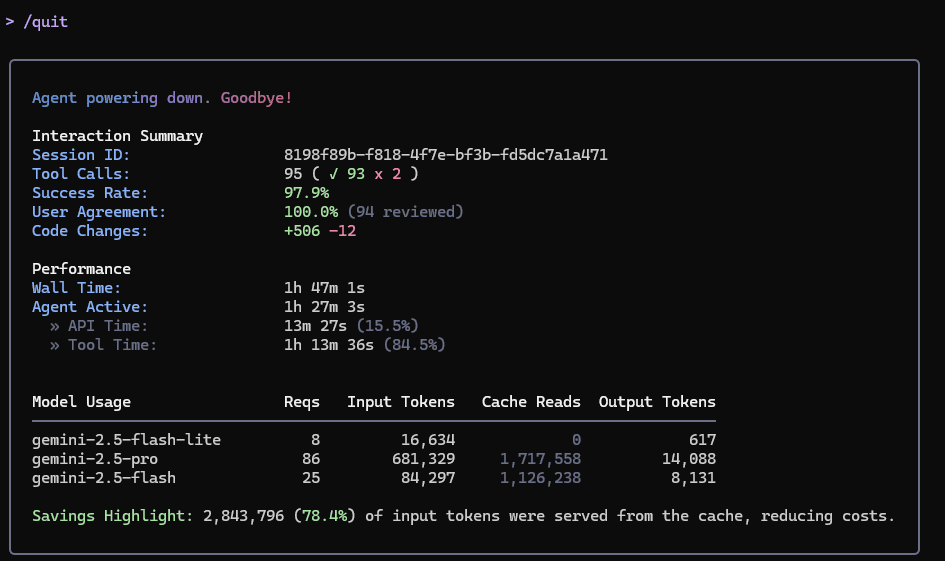
6. Windows Gemini CLI 설치 중 실전 실패 로그 모음 (재현 가능)
이 섹션은 직접 설치·실행 과정에서 실제로 발생한 오류만 정리했습니다.
단순 요약이 아니라, 같은 환경에서 그대로 재현 → 해결 → 검증 가능하도록 구성했습니다.
✅ 검증 환경 (버전 고정)
- OS: Windows 11 Pro
- Node.js: v24.13.0
- npm: 11.6.2
- gemini-cli: 0.25.2
- 검증 날짜: 2026-01-27
⚠️ 버전이 다르면 증상이나 해결 방식이 달라질 수 있습니다.
이후 변경 사항은 본문 하단 “업데이트 로그”로 이어서 관리합니다.
6.1. Windows Gemini CLI 설치 중: npm.ps1 실행 정책 오류 해결
증상
npm : 이 시스템에서 스크립트를 실행할 수 없으므로
C:\\Program Files\\nodejs\\npm.ps1 파일을 로드할 수 없습니다.
원인
- PowerShell 기본 실행 정책이
Restricted - Node.js / npm 설치 오류가 아니라 보안 정책 문제
해결
PowerShell을 관리자 권한으로 실행 후, 아래 명령을 1회 실행합니다.
Set-ExecutionPolicy RemoteSigned -Scope CurrentUser확인 명령
node -v
npm -v
PS C:\\Windows\\System32> node -v
v24.13.0
PS C:\\Windows\\System32> npm -v
11.6.2- 두 명령 모두 정상 출력되면 해결 완료
6.2. System32 EPERM 경고 (gemini 실행 시 권한 오류)
증상
[WARN] Skipping unreadable directory:
C:\\Windows\\System32\\config (EPERM: operation not permitted)
원인
- 현재 작업 디렉터리가
C:\\Windows\\System32 - Gemini CLI가 현재 디렉터리를 스캔하면서 발생하는 권한 경고
해결
현재 디렉터리 확인 명령
pwdPS C:\\Windows\\System32> pwd
Path
----
C:\\Windows\\System32작업 디렉터리를 사용자 홈 디렉터리로 이동합니다.
cd $env:USERPROFILE
mkdir work
cd work
확인 명령
gemini "테스트 메시지"- EPERM 경고 없이 응답이 나오면 정상
6.3. Gemini CLI에서 GEMINI.md만 반복해서 읽는 루프 발생
증상
- 명령을 내려도 실제 파일 생성 없이
GEMINI.md 내용을 다시 요약하거나 반복 응답
원인
- Gemini CLI가 **“설계 문서 모드”**에 머물러 있음
- 실제 파일 생성 지시가 약하거나, 이전 맥락이 과도하게 남아 있음
해결
루프 탈출 명령어 (강제 중단 문장)
GEMINI.md는 더 이상 수정하지 말고,
지금은 실제 프로젝트 파일을 생성하는 작업만 수행해라.
또는 기존 GEMINI.md 삭제 (실무에서 가장 확실한 방법)
del GEMINI.md
gemini
/init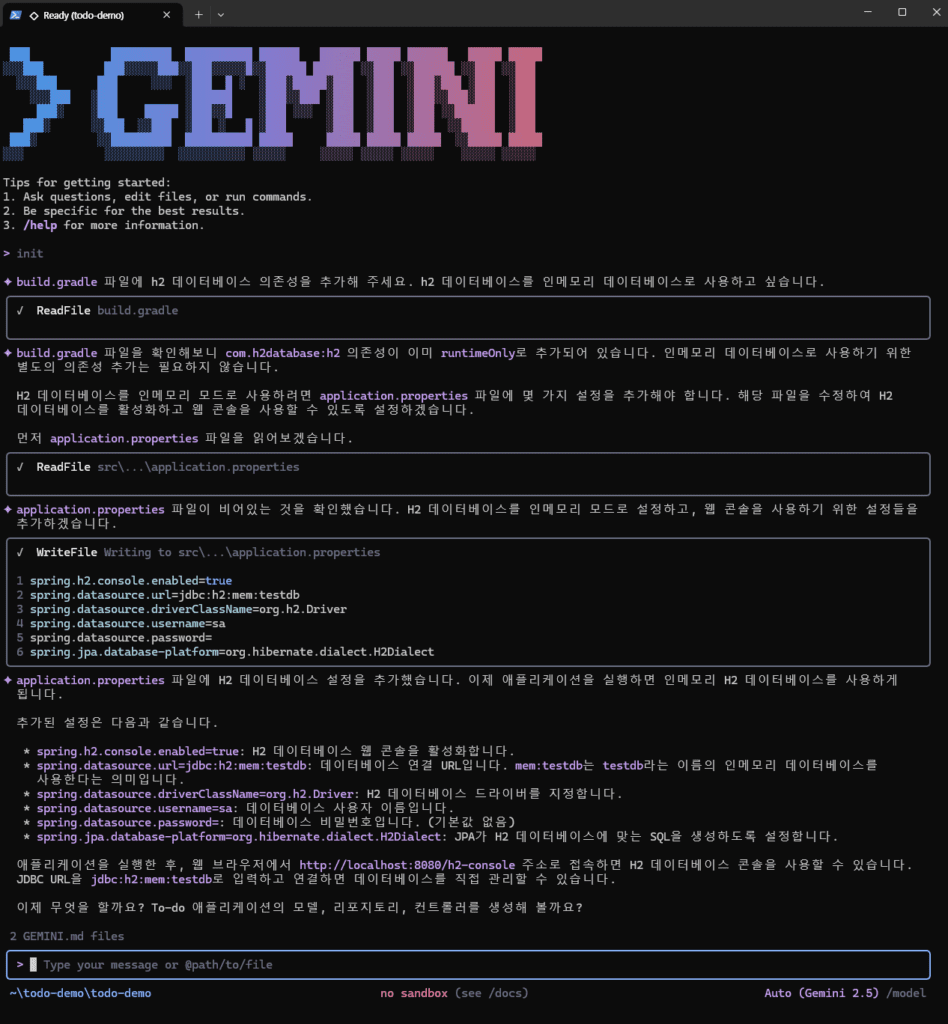
확인 명령
build.gradle,src/등 실제 파일 생성 여부 확인
dirPS C:\\Users\\rexjo\\todo-demo> cd .\\todo-demo\\
PS C:\\Users\\rexjo\\todo-demo\\todo-demo> dir
디렉터리: C:\\Users\\rexjo\\todo-demo\\todo-demo
Mode LastWriteTime Length Name
---- ------------- ------ ----
d----- 2026-01-27 오후 3:11 gradle
d----- 2026-01-27 오후 3:11 src
-a---- 2026-01-27 오후 3:10 553 build.gradle
-a---- 2026-01-27 오후 3:11 4779 gradlew
-a---- 2026-01-27 오후 3:11 1845 gradlew.bat
-a---- 2026-01-27 오후 3:10 31 settings.gradle
6.4. Gradle Wrapper 깨짐 (NoClassDefFoundError) 해결
증상
NoClassDefFoundError: org/gradle/wrapper/IDownload원인
gradle-wrapper.jar손상- ZIP에서 JAR만 복사한 비정상 복구 방식
해결
6.4.1. 기존 wrapper 파일 삭제
del gradlew
del gradlew.bat
del gradle\\wrapper\\gradle-wrapper.jar
6.4.2. Gradle 공식 배포판으로 wrapper 재생성
gradle.bat wrapper --gradle-version 8.5 --distribution-type bin6.4.3. wrapper 재생성 후 파일 확인
dir gradle\\wrapper\\확인 명령
.\\gradlew.bat --version
.\\gradlew.bat clean build -x test
7. 원클릭 점검용 자동화 스크립트
설치 환경 점검을 한 번에 확인하기 위한 스크립트입니다.
7.1. PowerShell 버전 확인
파워쉘 창에 아래 명령어를 입력합니다.
$PSVersionTable.PSVersionPS C:\\Windows\\System32> $PSVersionTable.PSVersion
Major Minor Build Revision
----- ----- ----- --------
5 1 26100 7627- Major 5: 윈도우 기본 설치 버전 (Windows PowerShell). 인코딩에 민감합니다.
- Major 7: 최신 오픈소스 버전 (PowerShell Core). 대부분의 인코딩 문제를 알아서 해결합니다.
7.2. verify-gemini-env.ps1 생성 (메모장)
메모장 없이 파워쉘에서 바로 실행하는 방법은 아래 7.3. 참고
- 파일 생성 (메모장)
cd $env:USERPROFILE
notepad verify-gemini-env.ps1
PS C:\\Windows\\System32> cd $env:USERPROFILE
PS C:\\Users\\rexjo> notepad verify-gemini-env.ps1
PS C:\\Users\\rexjo> 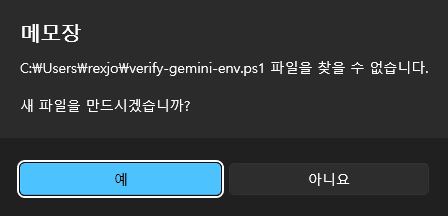
- 메모장에 아래 내용 붙여넣기
Write-Host "`n=== Gemini CLI Environment Check ===" -ForegroundColor Cyan

# [1] Node.js Check
Write-Host "`n[1] Node.js Version" -ForegroundColor Yellow
node -v
if ($LASTEXITCODE -ne 0) {
    Write-Host "[-] Node.js is NOT installed" -ForegroundColor Red
} else {
    Write-Host "[OK] Node.js is detected" -ForegroundColor Green
}

# [2] npm Check
Write-Host "`n[2] npm Version" -ForegroundColor Yellow
npm -v
if ($LASTEXITCODE -ne 0) {
    Write-Host "[-] npm Execution Failed" -ForegroundColor Red
} else {
    Write-Host "[OK] npm is detected" -ForegroundColor Green
}

# [3] Gemini CLI Check
Write-Host "`n[3] Gemini CLI Version" -ForegroundColor Yellow
gemini --version
if ($LASTEXITCODE -ne 0) {
    Write-Host "[-] Gemini CLI is NOT installed" -ForegroundColor Red
} else {
    Write-Host "[OK] Gemini CLI is detected" -ForegroundColor Green
}

# [4] API Key Check
Write-Host "`n[4] Environment Variable" -ForegroundColor Yellow
if ($env:GEMINI_API_KEY) {
    $prefix = $env:GEMINI_API_KEY.ToString().Substring(0,5)
    Write-Host "[OK] GEMINI_API_KEY is Set (Start with: $prefix...)" -ForegroundColor Green
} else {
    Write-Host "[-] GEMINI_API_KEY is NOT Found" -ForegroundColor Red
}

# [5] Directory Check
Write-Host "`n[5] Current Directory" -ForegroundColor Yellow
$dir = (Get-Location).Path
Write-Host $dir
if ($dir -like "*System32*") {
    Write-Host "[!] Warning: Running in System32. Please move to another folder." -ForegroundColor Yellow
} else {
    Write-Host "[OK] Directory is Suitable" -ForegroundColor Green
}

Write-Host "`n=== Check Completed ===" -ForegroundColor Cyan- 파일 확인
dir ./verify-gemini-env.ps1PS C:\\Users\\rexjo> dir ./verify-gemini-env.ps1
디렉터리: C:\\Users\\rexjo
Mode LastWriteTime Length Name
---- ------------- ------ ----
-a---- 2026-01-29 오후 1:41 1451 verify-gemini-env.ps1- 실행
.\\verify-gemini-env.ps1PS C:\\Users\\rexjo> ./verify-gemini-env.ps1
=== Gemini CLI Environment Check ===
[1] Node.js Version
v24.13.0
[OK] Node.js is detected
[2] npm Version
11.6.2
[OK] npm is detected
[3] Gemini CLI Version
0.25.2
[OK] Gemini CLI is detected
[4] Environment Variable
[OK] GEMINI_API_KEY is Set (Start with: AIzaS...)
[5] Current Directory
C:\\Users\\rexjo
[OK] Directory is Suitable
=== Check Completed ===7.3. verify-gemini-env.ps1 생성 (PowerShell)
- 경로 이동
cd $env:USERPROFILEPS C:\\Windows\\System32> cd $env:USERPROFILE
PS C:\\Users\\rexjo> - 아래 전체 코드를 복사해서 파워쉘에 붙여넣기
$script = @'
Write-Host "`n=== Gemini CLI Environment Check ===" -ForegroundColor Cyan

# [1] Node.js Check
Write-Host "`n[1] Node.js Version" -ForegroundColor Yellow
node -v
if ($LASTEXITCODE -ne 0) {
    Write-Host "[-] Node.js is NOT installed" -ForegroundColor Red
} else {
    Write-Host "[OK] Node.js is Normal" -ForegroundColor Green
}

# [2] npm Check
Write-Host "`n[2] npm Version" -ForegroundColor Yellow
npm -v
if ($LASTEXITCODE -ne 0) {
    Write-Host "[-] npm Execution Failed" -ForegroundColor Red
} else {
    Write-Host "[OK] npm is Normal" -ForegroundColor Green
}

# [3] Gemini CLI Check
Write-Host "`n[3] Gemini CLI Version" -ForegroundColor Yellow
gemini --version
if ($LASTEXITCODE -ne 0) {
    Write-Host "[-] Gemini CLI is NOT installed" -ForegroundColor Red
} else {
    Write-Host "[OK] Gemini CLI is Normal" -ForegroundColor Green
}

# [4] API Key Check (Enhanced for compatibility)
Write-Host "`n[4] Environment Variable" -ForegroundColor Yellow
$apiKey = $env:GEMINI_API_KEY
if ($apiKey) {
    # Check length to avoid Substring error
    if ($apiKey.Length -ge 5) {
        $prefix = $apiKey.Substring(0,5)
    } else {
        $prefix = $apiKey
    }
    Write-Host "[OK] GEMINI_API_KEY is Set (Start with: $prefix...)" -ForegroundColor Green
} else {
    Write-Host "[-] GEMINI_API_KEY is NOT Found" -ForegroundColor Red
}

# [5] Directory Check
Write-Host "`n[5] Current Directory" -ForegroundColor Yellow
$currentPath = (Get-Location).Path
Write-Host $currentPath
if ($currentPath -like "*System32*") {
    Write-Host "[!] Warning: Running in System32. Please move to another folder (e.g., C:\\work)." -ForegroundColor Yellow
} else {
    Write-Host "[OK] Directory is Suitable" -ForegroundColor Green
}

Write-Host "`n=== Check Completed ===" -ForegroundColor Cyan
'@

# 파워쉘 5.1/7 모두에서 인코딩 문제 없이 파일을 저장하는 가장 안전한 방법 (.NET 활용)
[System.IO.File]::WriteAllText("$pwd\\verify-gemini-env.ps1", $script, [System.Text.Encoding]::UTF8)

Write-Host "`n[Success] verify-gemini-env.ps1 has been created." -ForegroundColor Green
Write-Host "Type '.\\verify-gemini-env.ps1' to run the check." -ForegroundColor White- 파일 확인
dir ./verify-gemini-env.ps1PS C:\\Users\\rexjo> dir ./verify-gemini-env.ps1
디렉터리: C:\\Users\\rexjo
Mode LastWriteTime Length Name
---- ------------- ------ ----
-a---- 2026-01-29 오후 1:41 1451 verify-gemini-env.ps1- 실행
.\\verify-gemini-env.ps1PS C:\\Users\\rexjo> ./verify-gemini-env.ps1
=== Gemini CLI Environment Check ===
[1] Node.js Version
v24.13.0
[OK] Node.js is Normal
[2] npm Version
11.6.2
[OK] npm is Normal
[3] Gemini CLI Version
0.25.2
[OK] Gemini CLI is Normal
[4] Environment Variable
[OK] GEMINI_API_KEY is Set (Start with: AIzaS...)
[5] Current Directory
C:\\Users\\rexjo
[OK] Directory is Suitable
=== Check Completed ===8. 보안 주의사항
- ❌ API 키를 블로그, 스크린샷, 깃 커밋에 절대 노출 금지
- ✅ 반드시 환경 변수(GEMINI_API_KEY) 로만 관리
- ✅
.gitignore에 아래 항목 포함 권장
.env
*.key
**/*api*key*- ✅ GitHub에 푸시 전 점검 명령
- 가능하다면 GitHub Secret Scanning 활성화 권장
*# API 키 노출 검사*
git grep -i "gemini_api_key"
git grep -E "AIza[0-9A-Za-z_-]{35}" *# Gemini API 키 패턴*
9. Todo REST API 테스트
curl -X POST <http://localhost:8080/api/todos> \\
  -H "Content-Type: application/json" \\
  -d '{"title":"첫 번째 할 일"}'
자주 묻는 질문 (FAQ)
Q. Windows에서 Gemini CLI 설치에 Node.js가 꼭 필요한가요?
A. 네. Gemini CLI는 Node.js 기반 도구이므로 필수입니다.
Q. PowerShell에서 오류가 많은데 괜찮나요?
A. 대부분 실행 정책 또는 작업 디렉터리(System32) 문제이며, 설정 후 정상 사용 가능합니다.
Q. Gemini CLI로 실제 프로젝트가 가능한가요?
A. 가능합니다. 이 포스트의 Todo 데모는 IDE 없이 CLI만으로 구성됩니다.
Q. npm -v는 되는데 왜 npm install은 안 되나요?
A. PowerShell 실행 정책 때문입니다. Set-ExecutionPolicy RemoteSigned 명령으로 해결하세요.
Q. System32 경고가 계속 나오는데 무시해도 되나요?
A. 무시 가능하나, 작업 디렉터리를 $env:USERPROFILE로 옮기면 깔끔합니다.
마무리 정리
- Windows에서 Gemini CLI는 Node.js → npm → API 키 설정 흐름이 핵심입니다.
- Gemini CLI는 단순 챗봇이 아니라 개발 자동화를 수행하는 CLI 에이전트입니다.
- Spring Boot + Gradle 기반 Todo REST API는 Gemini CLI만으로 충분히 구현 가능합니다.
업데이트 로그 관리 안내
- 2026-01-27
- Node v24 / gemini-cli 0.25.2 기준 검증
- 이후 버전 변경 시
- 본문 상단 “검증 환경” 섹션 업데이트 예정
이직·퇴사, 지금 움직여도 될지 헷갈리시나요?
막연히 불안한 건지, 정말 시점이 온 건지 판단이 어려울 때가 있습니다.
5분 체크리스트로 지금 상태를 먼저 정리해보세요.
결론을 대신 내리기보다, 스스로 판단할 기준을 잡는 데 도움을 드립니다.
아직 확신이 없다면, 지금이 ‘고민 단계’인지부터 먼저 점검해보세요